Cards & decks
Organise your Library and decks
Find cards, pause a deck, choose its settings, and understand reset and deletion.
Android · Updated 23 October 2026
On this page
Use Library to manage what you study. A deck groups cards; imported collections can also have subdecks and additional note tags.
Open a deck and find its cards
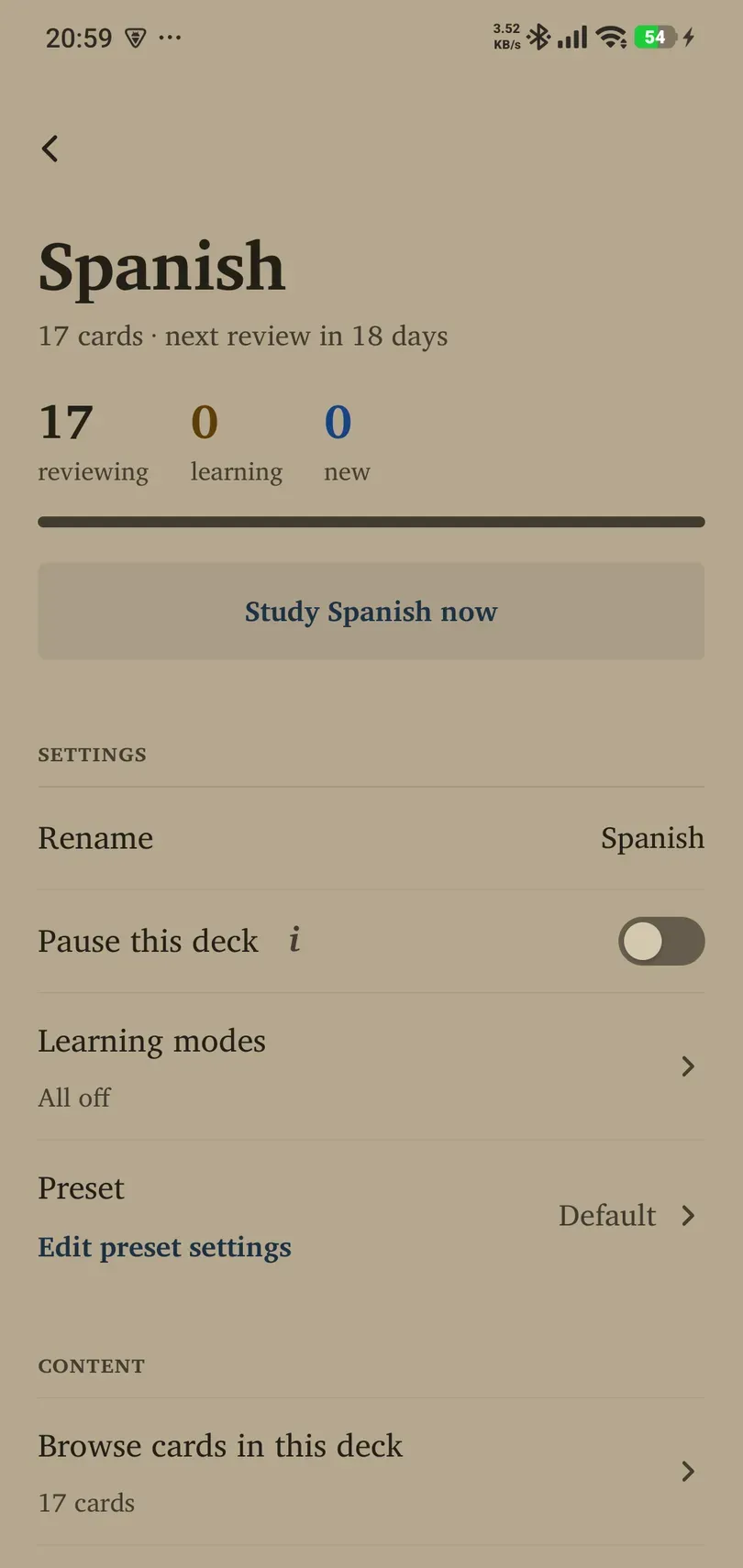
- Open Library and select a deck. Use the available search and filters to narrow a large collection.
- Read its overview and counts before making changes.
- In Content, choose Browse cards in this deck to look through its cards or Manage cards to work with active and paused cards.
- Use Study … now where offered to begin studying that deck.
Manage cards includes paused material that does not appear in the normal Flow. Search there when you remember saving a card but cannot find it in a study session.
In Manage cards, switch between All and Paused and use Search word or translation. Tap a card for Edit, Pause (or its resume action), Reset progress, or Delete. Check that the sheet names the intended card before acting. Use Undo promptly when offered after deleting a card; the deck-level Delete deck action has different, permanent consequences.
Rename, pause and choose a preset
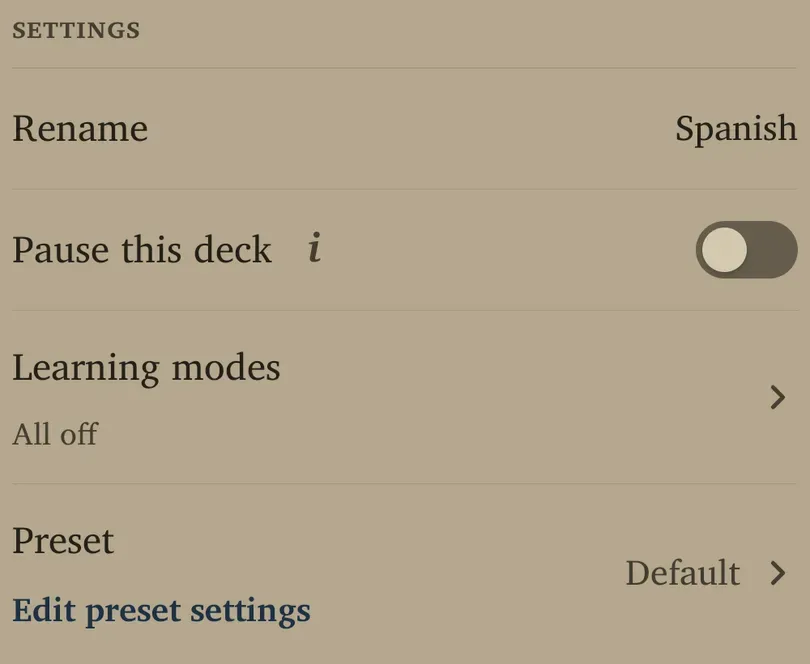
- Rename: change the deck’s displayed name and finish the edit. If a name is refused, use the error message to choose a valid, distinct name.
- Pause this deck: keep its cards and progress while taking them out of study. Turn it off to resume. Pausing is useful when you want a smaller active collection.
- Learning modes: configure supported vocabulary prompts and open practice activities.
- Preset: select the scheduling settings for the deck. Edit preset settings changes that preset, which can affect other decks using it too.
An individual card can be paused without pausing the whole deck. Check both levels when a card seems missing.
Export a deck
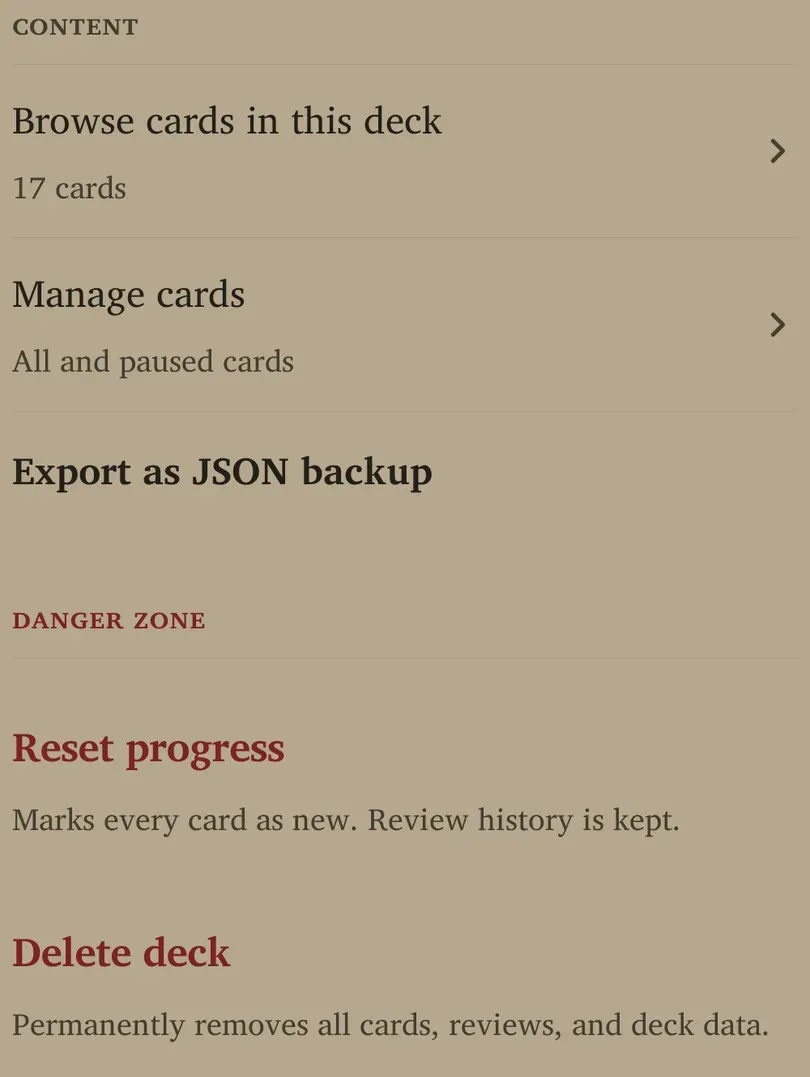
Use Content → Export as JSON backup to keep a deck file. Save it somewhere you can find again and read the completion message. A Remilo JSON backup is different from an Anki deck package; do not rename its extension to make it an Anki file.
Reset progress and delete safely
The Danger zone has two different actions:
- Reset progress marks every card in that deck as new while keeping review history. It changes the study state; it is not required after a break.
- Delete deck permanently removes the deck’s cards, reviews and deck data.
These actions require deliberate confirmation, including a hold. Export a backup first if you might need the material again. To take a temporary break, pause rather than delete. The guide’s screenshots do not perform either destructive action.