Account & your data
Back up, export and restore your data
Understand Google Drive backups, unencrypted JSON files, merge imports and recovery warnings.
Android · Updated 23 October 2026
On this page
Open Settings → Data → Backup & restore. A backup is a saved recovery copy. Sync coordinates supported changes between connected devices; it is not a replacement for an independent recovery plan.
Read the backup status
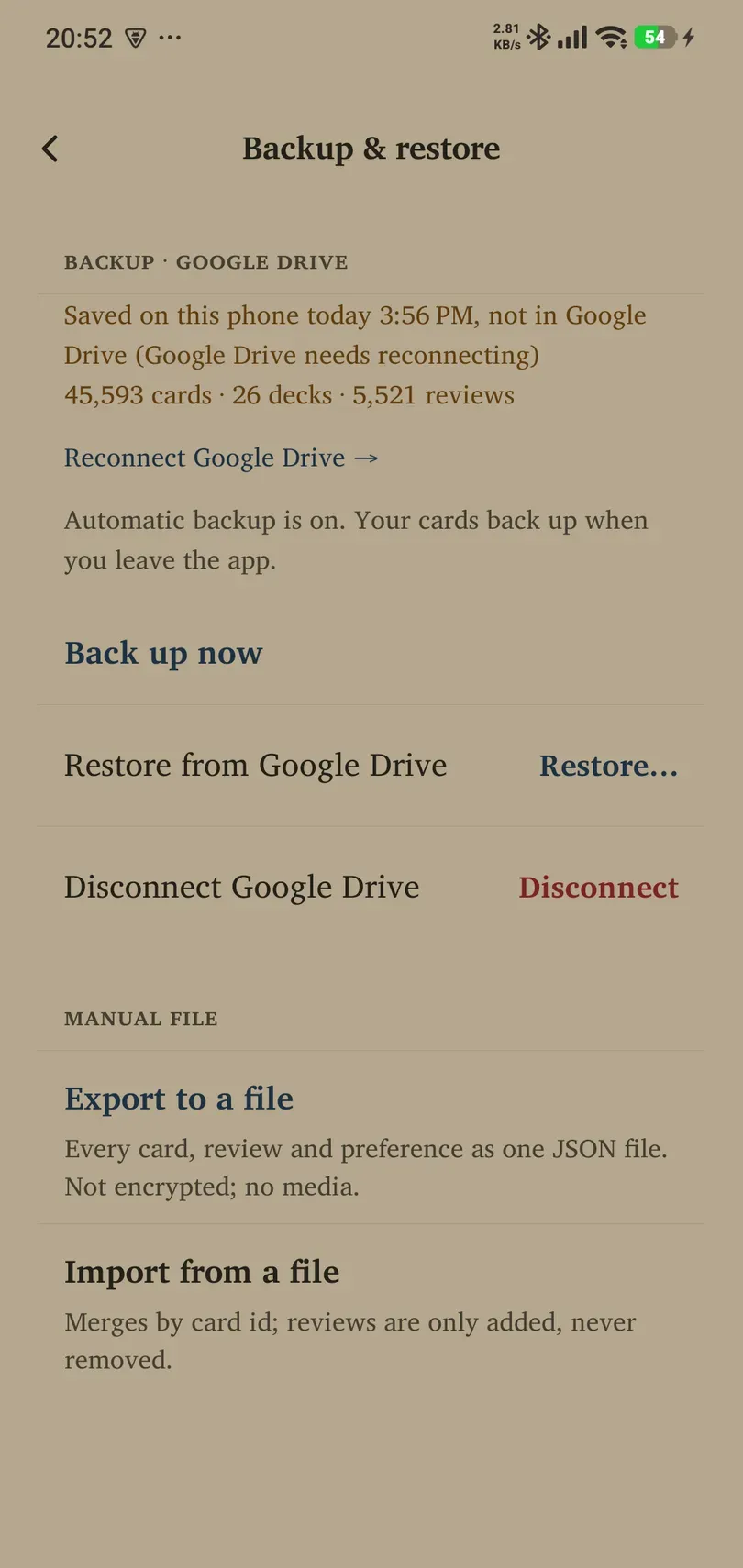
The status distinguishes a copy saved on this phone from one uploaded to Google Drive. A reconnect warning means you must resolve Drive access before assuming an off-phone copy exists. Check the date and result, not just whether automatic backup is on.
Google Drive backup
- Sign in to the appropriate Remilo account when required.
- Under Backup · Google Drive, choose Connect or the offered reconnect action and complete Google’s authorisation.
- Check the connected/automatic-backup state.
- Choose Back up now, wait for completion, and read the resulting location/date or error.
Automatic backup is a Pro feature and runs when you leave the app once connected. Free users can use Back up now and manual exports. Uploads need a working connection. Drive backups include media and are encrypted on the device before upload; do not interpret that as a claim that only you hold all key material.
Restore a saved backup
- Keep a current independent copy before recovering important data. Drive restore adds the backup to this phone: it does not delete existing content, and cards studied here after the backup keep their newer progress.
- Choose Restore… and inspect the available backups, their dates and any displayed counts.
- Select the intended backup. Read the confirmation describing what will happen on this device.
- Proceed only when the account and recovery choice are correct. Keep the app open until the result is shown.
- Check Library, several cards, media and progress afterward.
If the app reports damaged or unavailable recovery material, use the offered older-backup option rather than repeatedly selecting the same failed copy. Ownership locks must be resolved through Account; a restore is not a way around them.
Finish downloading restored media
Cards can be available before all their audio and images finish downloading. If they appear blank or silent after a restore, return to Backup & restore and look for Download media (… left).
- Choose Run to resume the pending media download; Cancel stops an active run so you can continue later.
- Off Wi-Fi, read the mobile-data prompt. Choose Start to use that connection or Later to wait.
- If the remaining media is unavailable from that Drive, the app offers Dismiss rather than a retry that cannot succeed. Its confirmation offers Discard to permanently discard the pending recovery state, or Keep to retain it. Discard does not magically recover the missing files.
- Check a few cards with sound and images after completion. Keep original media packages or an older usable backup when the saved files themselves are missing.
Manual JSON export and import
Export to a file writes cards, reviews and preferences into a JSON file. The file is not encrypted and contains no media. Store it privately and keep original media/deck packages if you need to recover images or audio.
Import from a file merges by card ID. Reviews are added, never removed by this merge. It is not a “replace everything with this file” operation. Check the import message and counts afterward; a backup containing text references cannot recreate media that was never in the file.
For a single deck, use Library → deck → Content → Export as JSON backup. An Anki package import belongs under Add decks instead.
Disconnecting and account deletion
Disconnect Google Drive offers Keep files or Delete files. Read which files will be affected before choosing; disconnecting access and deleting stored copies have different consequences.
Deleting your Remilo account also destroys the cloud-backup key, making those encrypted backups unreadable even if Drive retains the files. A backup you cannot decrypt is not a recovery copy.