Cards & decks
Edit cards and imported Anki notes
Improve vocabulary cards while preserving the structure of imported notes and media.
Android · Updated 23 October 2026
On this page
A clear card is easier to review honestly. Correct an ambiguous meaning, add useful context, or pause material that is not relevant to you.
Open and save an edit
- Find the card in Library → deck → Content → Browse cards in this deck or Manage cards.
- Open the card’s edit action. Flow also offers card actions where available.
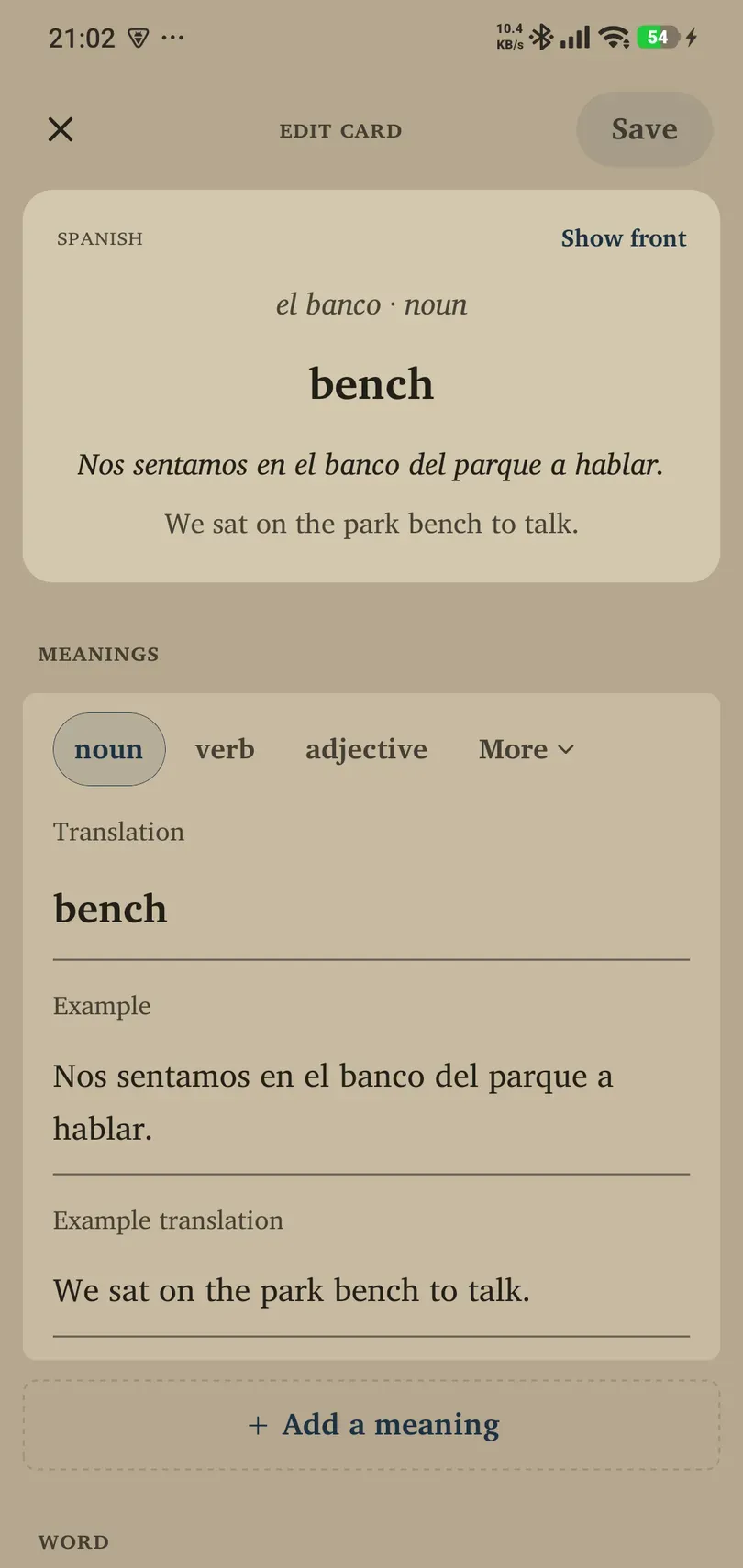
- Change the appropriate fields. Vocabulary cards can expose the word, translation, example and other details; the exact fields depend on the card.
- Tap Save, then check the saved card. If you leave with unsaved changes, follow the keep/discard prompt.
Prefer one clear meaning and an example that demonstrates it. Check generated content before relying on it, especially when several meanings look similar.
Vocabulary fields and details
In Meanings, choose the part of speech (use More for additional choices), edit Translation, Example and Example translation, and use + Add a meaning when a word needs another sense. Keep each example with its own meaning. The preview can switch between front and back so you can inspect both.
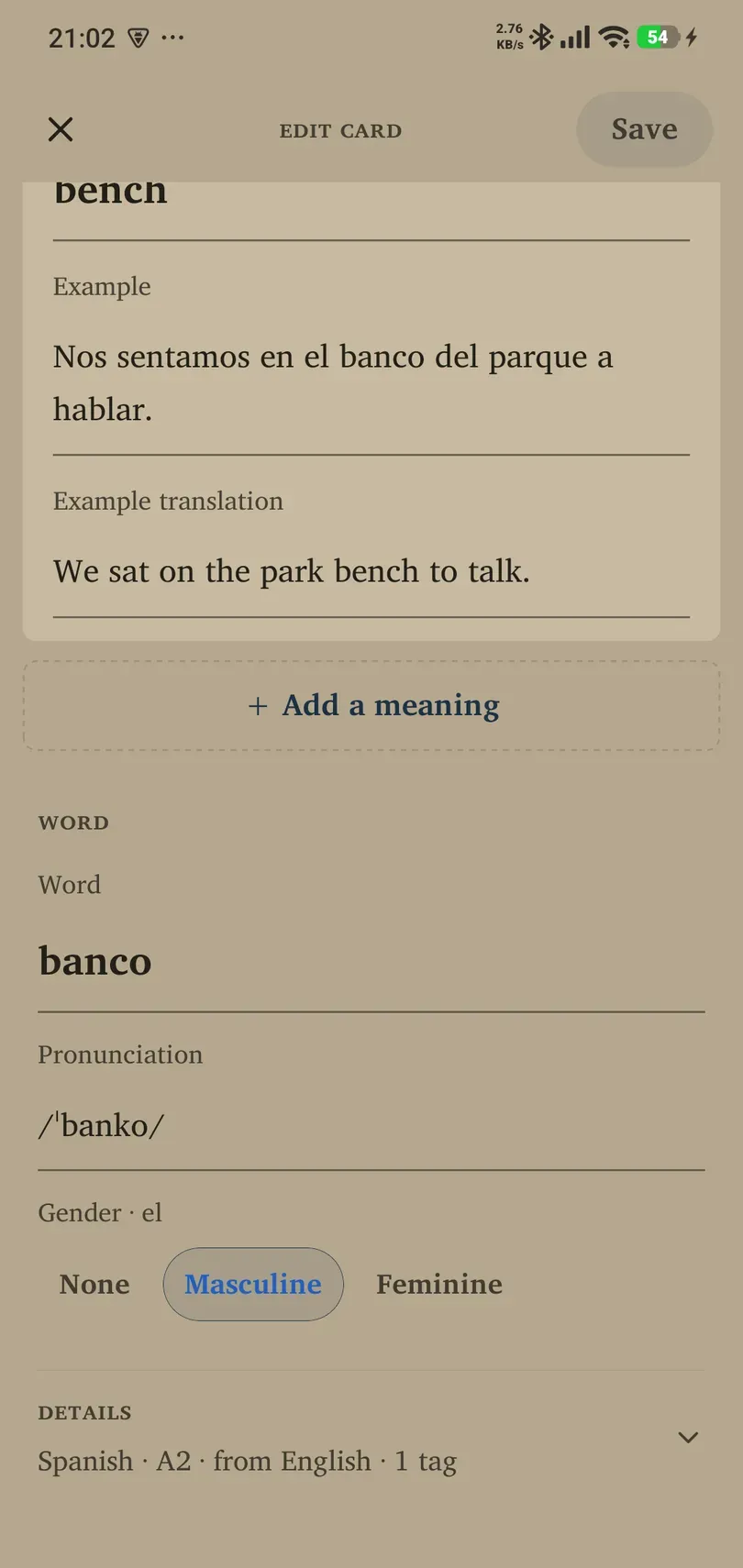
In Word, edit the headword and its Pronunciation text. Choose Gender where the language supports it; the matching article is shown alongside the label. Pronunciation text and your phone’s speech voice are separate things.
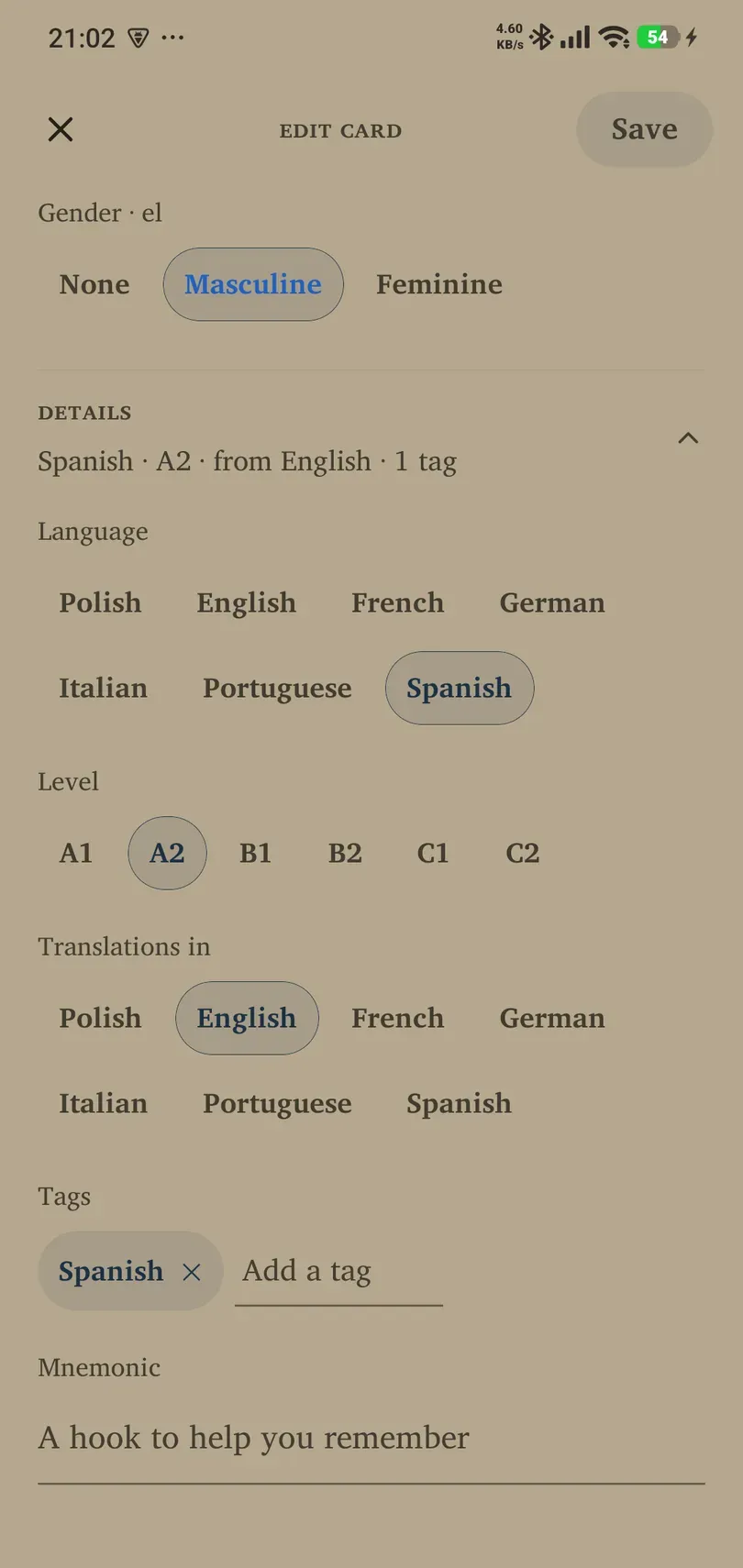
Expand Details to edit Language, Level (A1–C2), Translations in, Tags and Mnemonic. Use Add a tag or a tag’s remove control to change organisation. A mnemonic is your own memory hook. Changing a language label does not translate the text you entered; check that fields still agree before saving.
Imported Anki notes behave differently
An imported note can generate several cards. Editing its shared fields can change all of those sibling cards. The editor preserves the imported note’s field and template structure rather than turning it into a dictionary card.
- Plain fields can be edited as text.
- Supported formatting is preserved when editing text.
- Media may appear as fixed media elements or anchors within a field. Removing an anchor can remove that media from the edited field.
- Rich or unsupported content may expose raw HTML. Keep markup intact unless you understand its role.
- Cloze fields retain their
{{c1::…}}style markers. You can edit text, but changing the set of cloze numbers is blocked because it would change which cards exist.
Use Revert to imported when offered to restore the saved imported field content. Review the result before continuing.
What happens when you import again
Re-importing can refresh untouched imported content. Notes you edited in Remilo are protected from being overwritten by that content refresh. Deck-author templates, styling and mask information can still update, so an edited note is not a frozen copy of the entire original package.
If a change does not look right
Check the correct card and its front/back after saving. A shared Anki field may appear on several cards in different ways. Cancel an unfinished edit if you are unsure; use a file backup before large changes. Do not remove unfamiliar HTML or cloze markers just to make an editor field look simpler.