Capture & connections
Capture words on your phone
Save text from another app or a photo, then review it in your Inbox.
Android · Updated 23 October 2026
On this page
Capture is useful when a word appears in something you are already reading. Keep the surrounding sentence when you can: it makes choosing the intended meaning easier.
Share from another Android app
- Select the text in the source app and open Android’s Share menu. For supported images, share the image instead.
- Choose Remilo.
- Check the detected word, sentence and target language. Correct recognition mistakes before turning them into cards.
- Follow the review/save action shown by the capture flow.
The available sharing action depends on the source app. If it offers only a link and no useful text, copy the word into Add card instead. Private or protected screens may not allow text or image sharing.
Use the camera
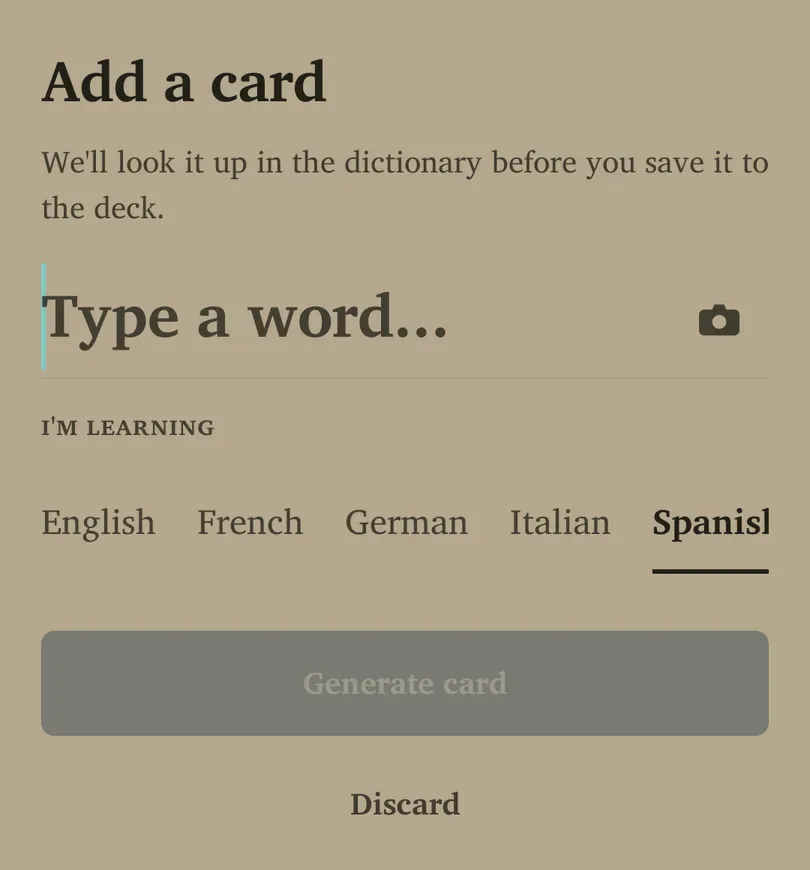
- Open + and tap the camera control.
- Grant camera access if Android asks and you want to use this feature.
- Keep printed text sharp, well lit and readable. Follow the capture screen’s selection controls.
- Inspect the recognised text, select the intended word and check its sentence before saving.
OCR can confuse accents, punctuation and similar-looking letters. Retake an unclear image or type the correction. A recognised sentence should still make sense when you read it aloud.
Review the Inbox
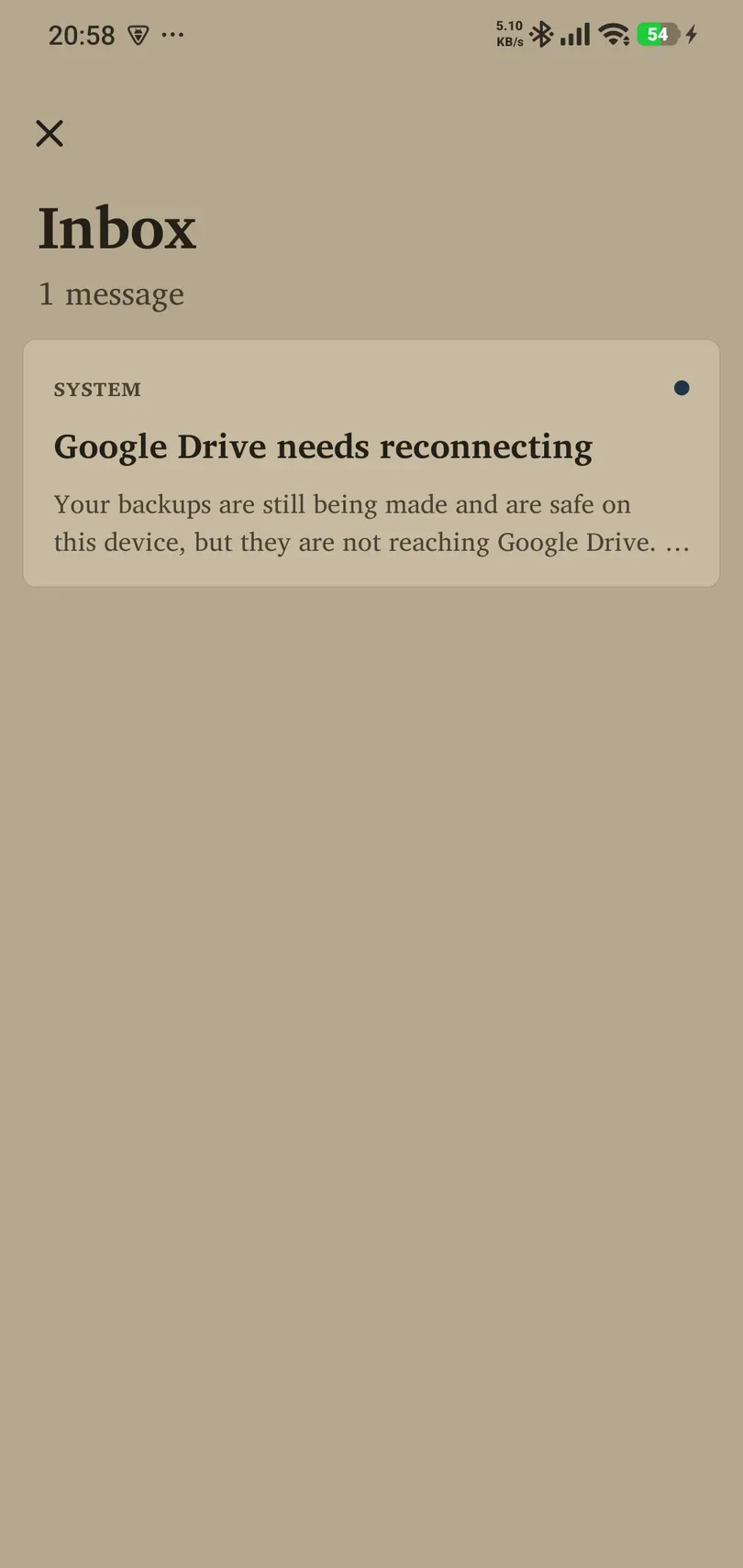
- Open Flow and tap the envelope. Its badge indicates waiting items.
- Open a capture and inspect the word, meaning, sentence and language.
- Use its offered add, edit or discard controls. Saving a capture and having a scheduled review ready are separate steps.
- Return to Library or Flow to check the resulting card.
Inbox also contains system messages, such as a backup connection warning. A system notice is not a captured vocabulary card; open it for its own explanation and recovery action.
Phone capture and browser capture use different entry points. You do not need to pair a browser just to use your phone’s camera or share sheet.
If nothing arrives
Check the selected language and downloads, then reopen Inbox. Browser deliveries additionally need an active pairing and connection. If camera permission was denied, allow it in Android’s app settings or use text entry instead. Avoid repeatedly submitting the same capture before checking whether it is already waiting.