Cards & decks
Add a word or make your own card
Generate a vocabulary card, check its preview, or supply your own content.
Android · Updated 23 October 2026
On this page
The + button is the quickest way to save a word. Check the selected language before you begin, especially when you study several languages.
Generate and check a card
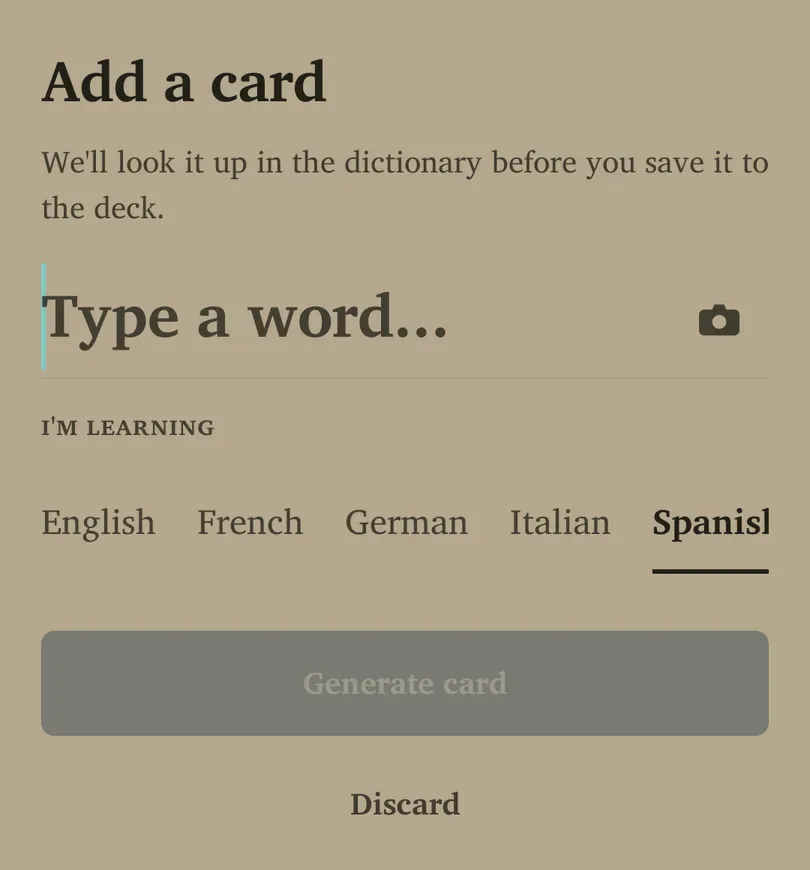
- Tap + and type the word into Type a word….
- Select its target language under I’m learning.
- Choose Generate card when available and wait for the result.
- Read the preview’s word, meaning and example. If it is not the sense you wanted, edit it before saving.
- Choose Add to Flow. You return to Flow after the card is saved.
If the app detects an existing matching card, it may take you to that card. This prevents unnecessary duplicates. Correct the existing card if that is what you intended.
Add content manually
If generation cannot supply an entry, follow the manual option shown by the app, including Add anyway where offered. Enter the meaning and any useful example yourself, then review and save.
A manually created card does not automatically gain all the structured dictionary information used by Quiz mode or grammar activities. A word and translation can still make a useful ordinary review card.
Capture rather than retype
Use the Add screen’s camera control to capture printed text. You can also share supported text or images to Remilo from another Android app. Review the recognised word and sentence before saving; a photo is only as useful as the text extracted from it.
Keep new cards manageable
Choose words you expect to meet again and a sentence that makes the meaning clear. If every new card appears immediately despite your daily goal, check Settings → Cards → Card options → Prioritize new cards. When on, newly added cards can bypass the daily limit.
If an add fails, read the error before retrying. Check the language, required downloads and connection. Return to Library to confirm whether a card was saved before repeatedly adding it again.