Capture & connections
Save words from your browser
Pair the Chrome extension with your phone and bring useful sentences into Inbox.
Android · Updated 23 October 2026
On this page
Browser pairing is a Pro feature. It connects the supported Chrome extension to a phone so captured words can arrive in Remilo. Phone-only capture remains a separate feature.
Pair your browser
- Install the supported VocaCards/Remilo extension in Chrome on your computer using the product’s official distribution.
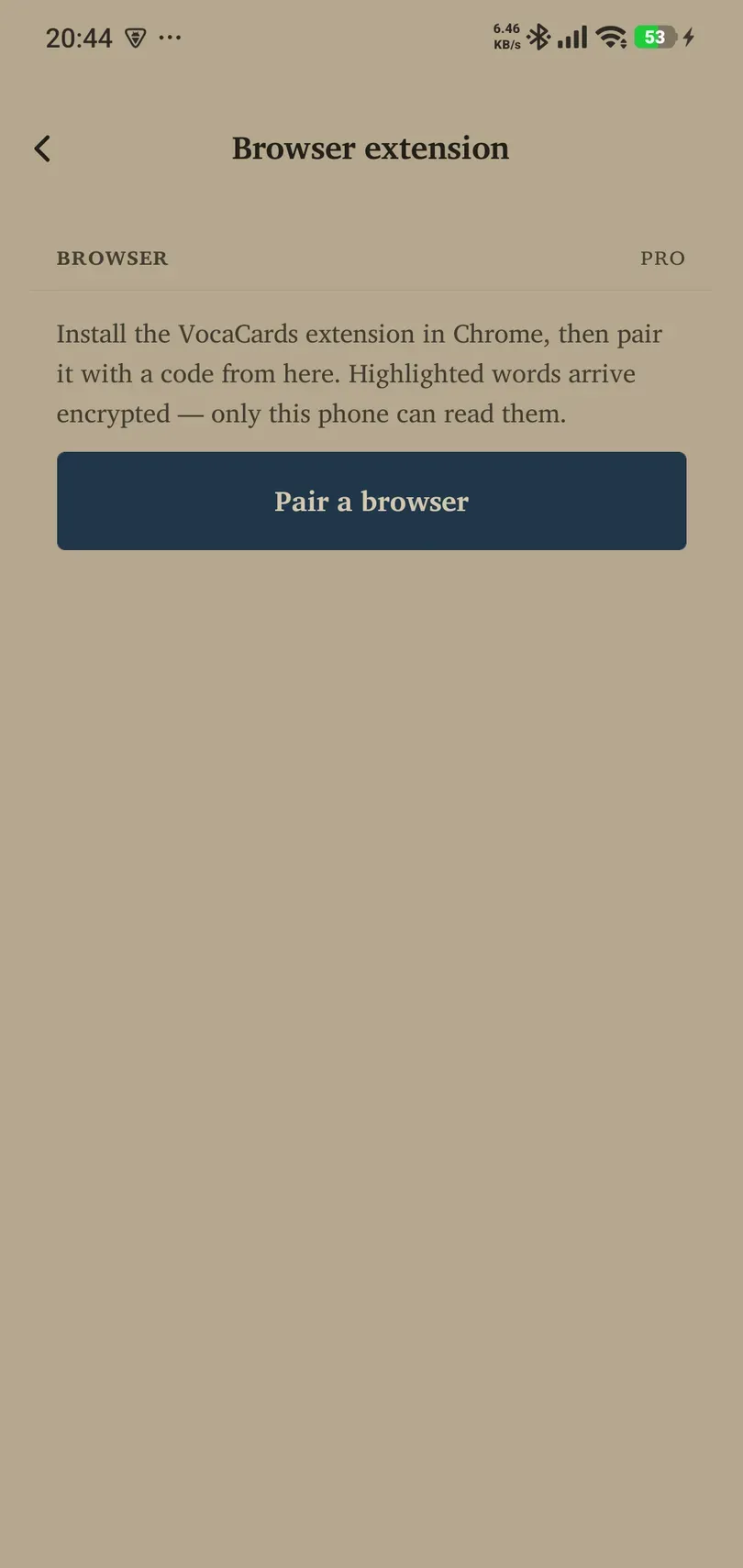
- On your phone, open Settings → Cards → Browser extension.
- Sign in if prompted and check the Pro requirement.
- Choose Pair a browser and follow the instructions for entering its code into the extension.
- Finish pairing on your own browser. Treat a pairing code as private; do not post it in screenshots or support messages.
If a code expires, start a fresh pairing rather than repeatedly entering the old one. Do not install an unrelated extension simply because its name looks similar.
Capture a useful word
- Highlight a word on a web page and use the extension’s capture action.
- Check the target language and surrounding sentence before sending.
- Open Remilo while connected and check Flow → envelope → Inbox.
- Review the captured entry and add the card when it is correct.
The browser pairing screen explains the encryption used for captured words. This is a specific capture feature; it should not be read as a promise about every backup or other service in the app.
Manage or remove a pairing
Return to Browser extension to inspect the offered pairing controls. Remove a browser pairing you no longer use. Pair again when changing to a browser or phone that is not connected. Removing a connection is different from deleting cards already added to your Library.
If a capture does not arrive
Confirm that the extension is connected to the intended phone, the phone has internet access, and your account still has the required access. Check Inbox before sending again. If the extension cannot read a particular page, try an ordinary text page or copy the word into Add card. Include the page type and visible error in a support report, without sharing private page content or pairing codes.