Languages & sound
Set up languages and dictionaries
Choose meanings and target languages, download packs, and understand what is available offline.
Android · Updated 23 October 2026
On this page
Language selection, translation support and dictionary coverage are separate things. A dictionary contains structured senses, gender, grammar and examples; a translation download supplies a simpler offline meaning.
Choose the languages you use
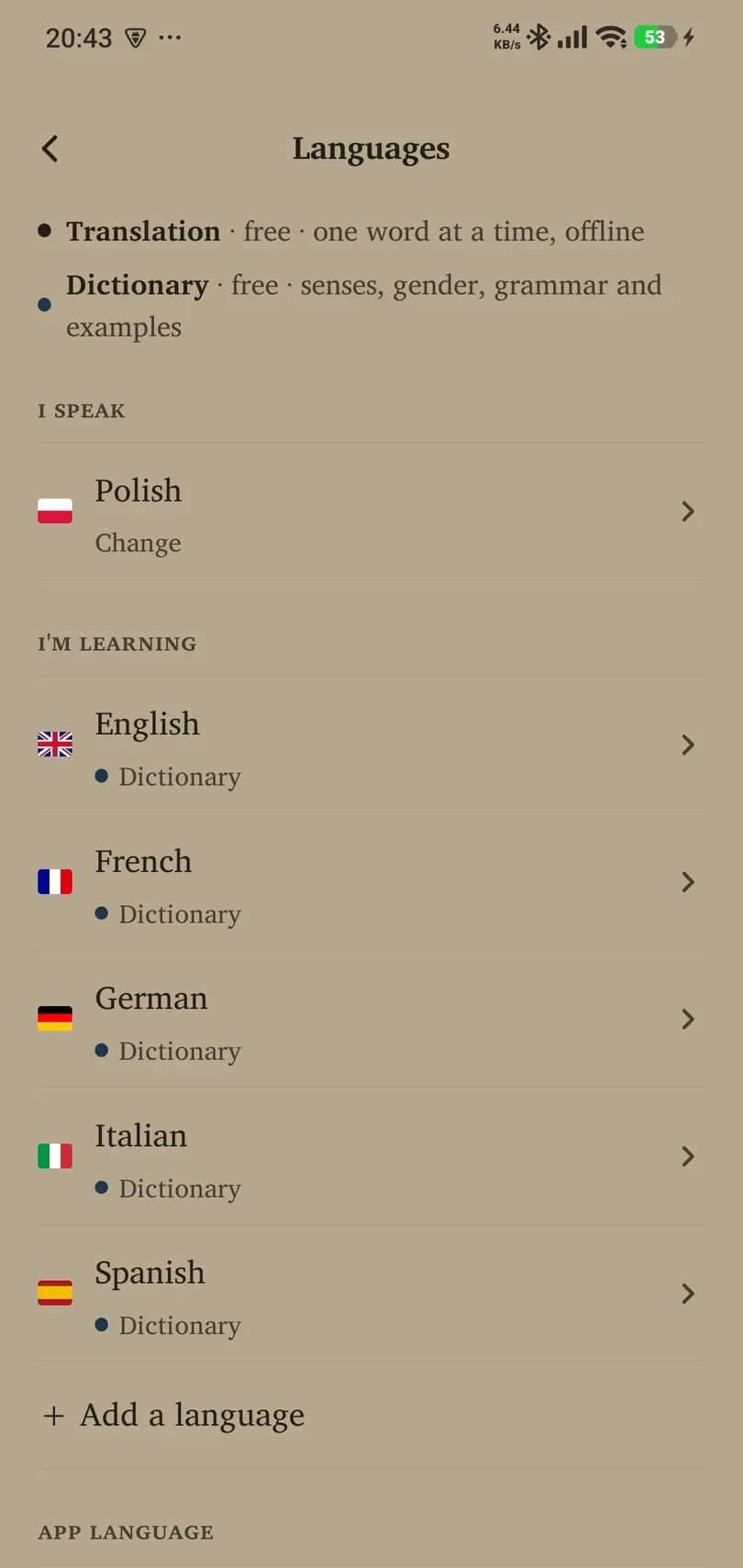
- Open Settings → Languages.
- Tap I speak → Change to select your meaning language.
- Under I’m learning, open a target language, or choose + Add a language.
- Use Learning [language] on its detail page to enable or disable studying that target where allowed.
The app does not let you select your native language as a target in that control. Turning a language off is different from deleting its cards or downloaded files. Features and language limits may depend on account access; follow an offered Pro explanation rather than assuming every listed language is active.
App language is a separate row. This version’s interface is English; changing “I speak” does not translate every menu.
Download meanings
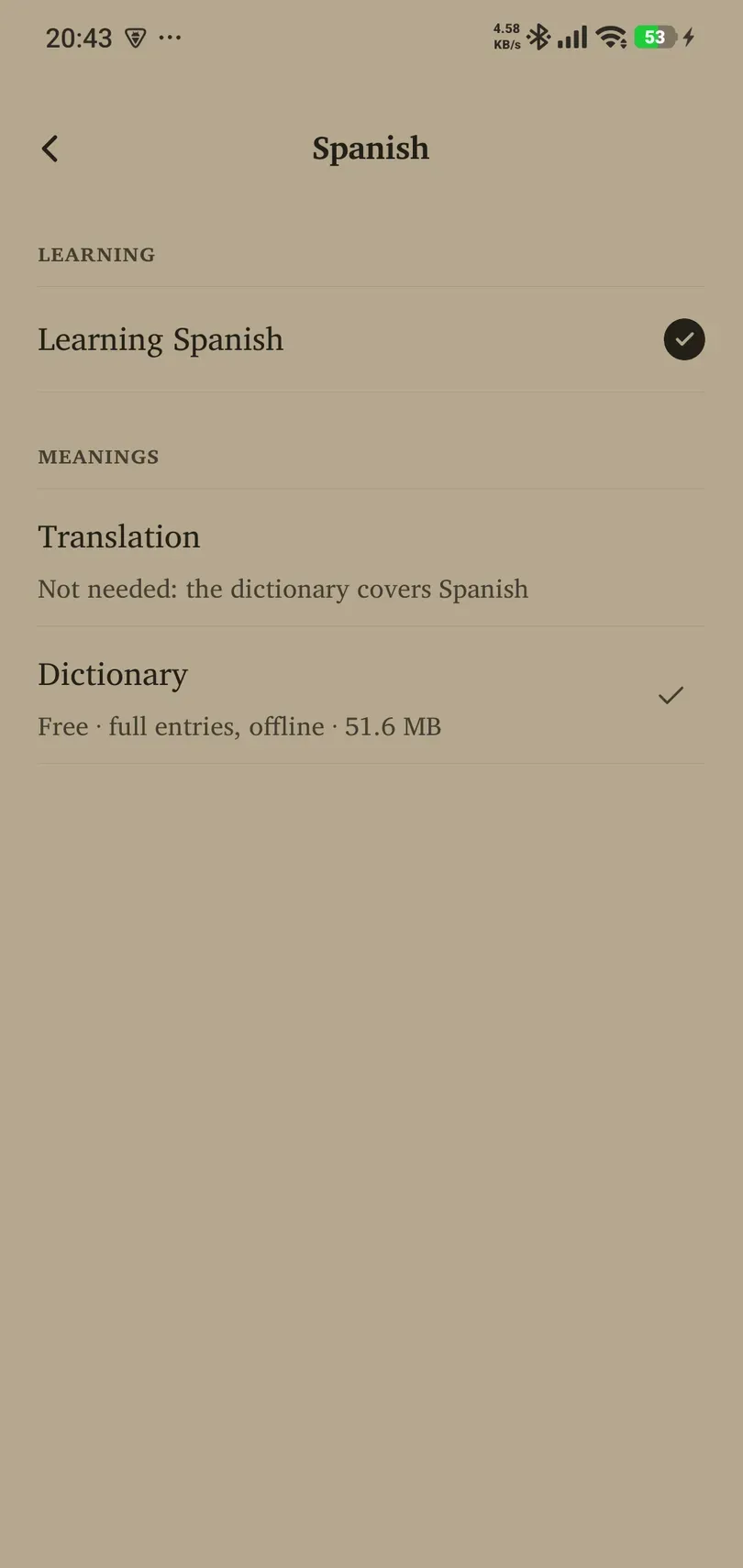
- Tap a target language.
- Inspect Translation and Dictionary separately.
- Tap the download control for the capability you need. Check any mobile-data confirmation and allow the download to finish.
- Check for the downloaded/ready indication. Use a dictionary update when offered.
Availability depends on the language pair, not just the target language. A dictionary for Spanish meanings in English does not automatically cover Spanish meanings in Polish. Course Creator needs a supported, ready dictionary for its selected pair.
Remove a download
Where the detail page offers it, hold the Translation row to remove its offline translation download and review the confirmation. Read that confirmation for consequences affecting associated downloaded content. This removes a local resource, not the same thing as deleting your whole account or Library.
Do not assume an undocumented long press removes a dictionary pack: use the controls and confirmation the page actually offers.
When something is unavailable
Check the source and target language, connection and download status. Some pairs have translation support without a dictionary; some may not yet be available. Existing downloaded cards remain distinct from the resources needed to generate new content. Use manual cards or supported imports when your preferred dictionary is not ready.