Make it yours
Every Card options setting
Grading, gestures, animations, text size, queue timing, tags and screen rotation explained.
Android · Updated 23 October 2026
On this page
Open Settings → Cards → Card options. These are app-level preferences. Where a setting has a more-info control, tap it for the app’s own explanation.
Grading
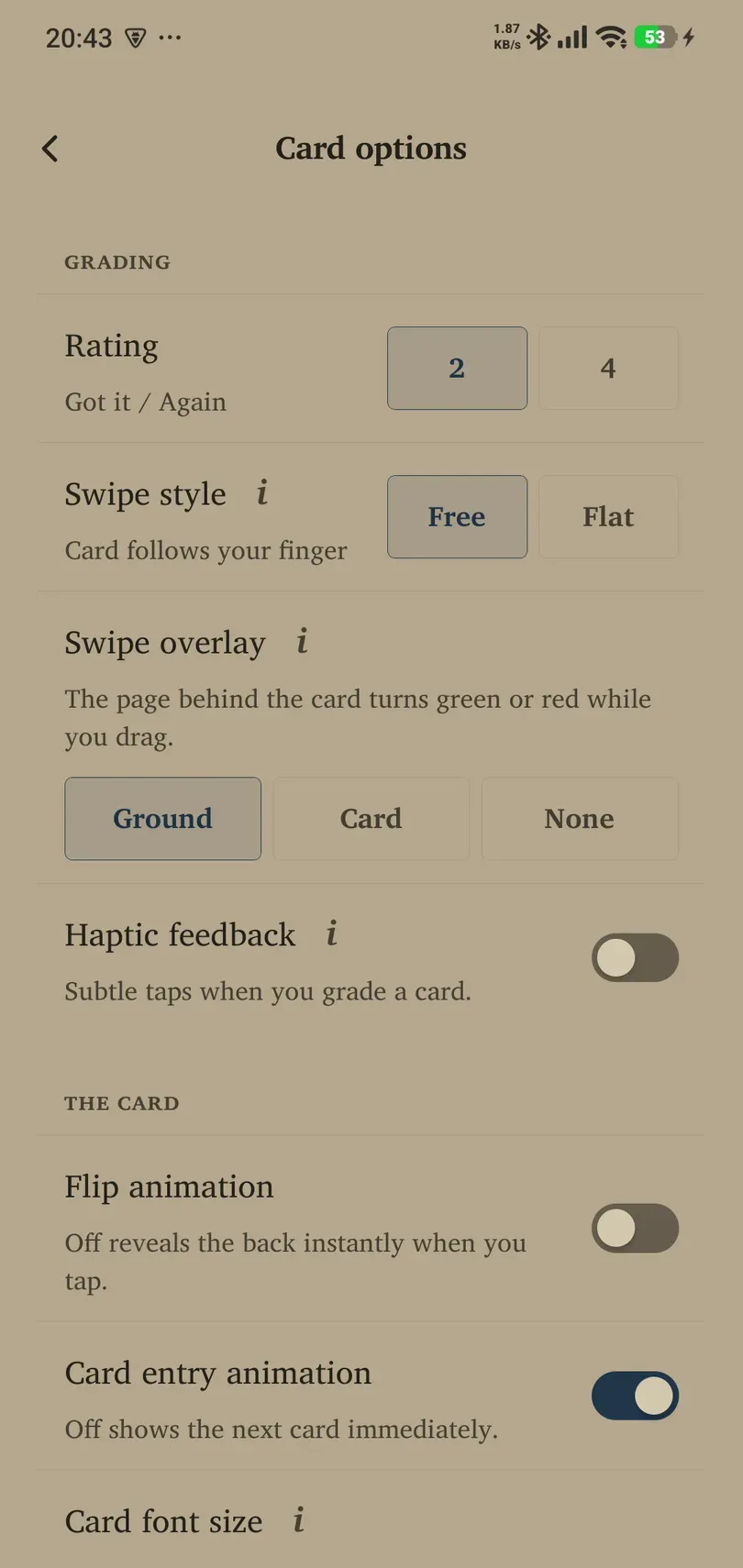
- Rating — 2 or 4: two buttons use Got it / Again; four use Again / Hard / Good / Easy. Fresh default: 2. Choose four if you want to express recall difficulty more precisely.
- Swipe style — Free or Flat: Free lets the card follow your finger in two dimensions; Flat moves left/right only. Fresh default: Free. This changes motion, not what an honest answer means.
- Swipe overlay — Ground, Card or None: show grading colour behind the card, on the card, or hide the wash. Fresh default: Ground. Choose a cue you can read comfortably before releasing a swipe.
- Haptic feedback: subtle physical taps during grading; fresh Android default: off. Turn it off if you prefer a quieter interaction. Hardware and system settings can affect vibration.
The card
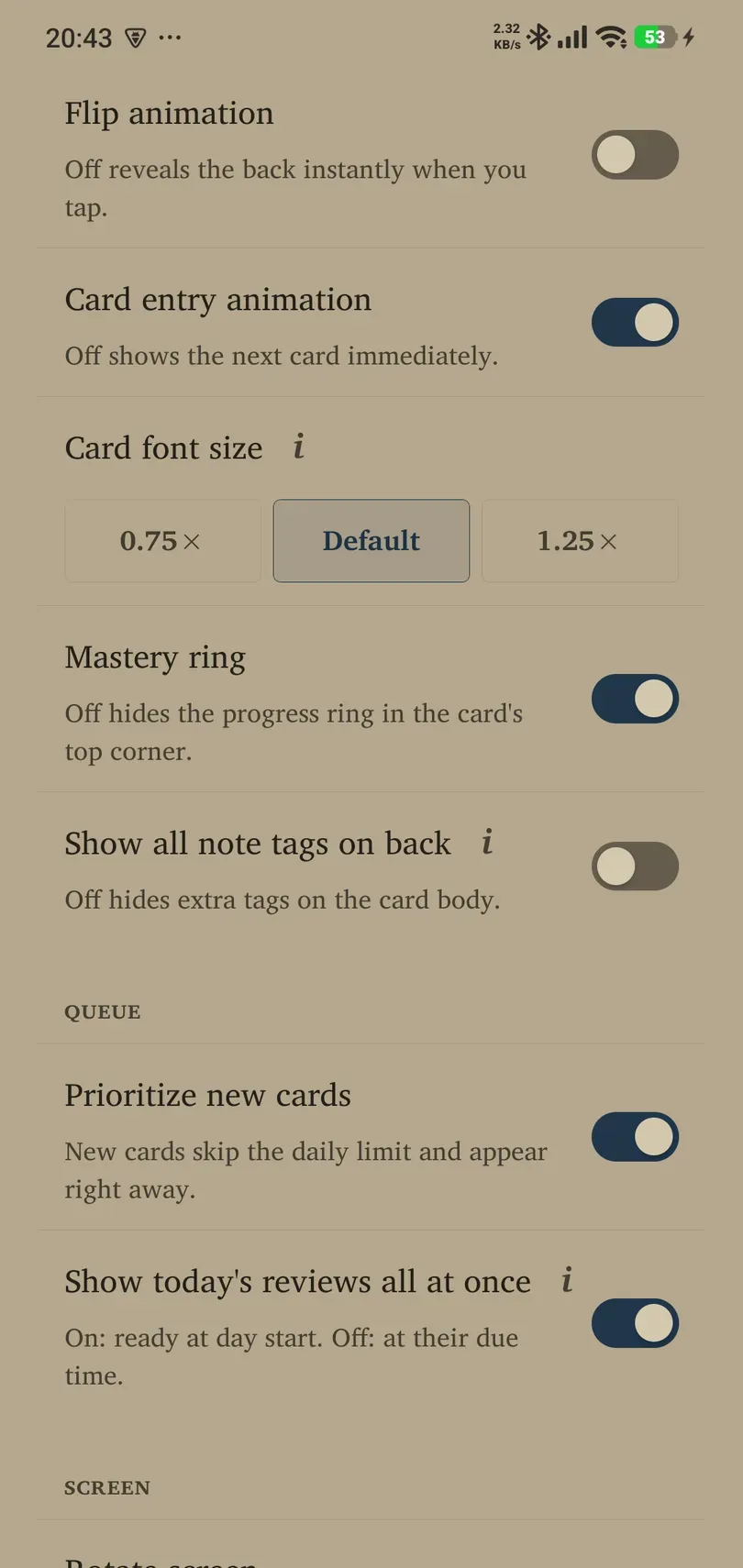
- Flip animation: animate the reveal, or reveal the back immediately. Fresh default: off.
- Card entry animation: animate the next card arriving. Fresh default: on. Off shows the next card immediately.
- Card font size — 0.75×, Default or 1.25×: scale the card’s content text. Fresh default: 1×. It does not scale every toolbar label. Larger text may need scrolling on long cards.
- Mastery ring: show or hide the progress ring in the card’s corner. Fresh default: on. Hiding it does not reset progress.
- Show all note tags on back: show additional note tags in the card body. Turn it off for a cleaner back; the tags themselves remain stored.
Queue
Prioritize new cards is on by default. Newly added cards can skip the ordinary daily intake limit and appear right away. Turn it off when you want a stricter intake limit; reducing New cards a day alone may not give that result while bypass is on.
Show today’s reviews all at once is on by default. On makes today’s scheduled reviews ready at the start of the study day; off respects their precise due times. It also changes the review reminder from a time-based reminder to a waiting-count threshold. See Notifications after changing it.
Screen
Rotate screen permits landscape or keeps the app upright. Until you explicitly choose, the automatic rule keeps phones upright and permits landscape on tablets and unfolded foldables. Once changed, your choice is retained. Android’s own orientation and device form can also affect the result.
Find a comfortable setup
Try one preference at a time on a card with a longer example. Keep visible grading feedback if you often swipe accidentally. For a calmer presentation, experiment with Flat swipes and disabled animations while retaining readable text and clear answer controls.