Capture & connections
Connect Anki Desktop
Pair the desktop bridge and send reviews of imported Anki cards back to Anki.
Android · Updated 23 October 2026
On this page
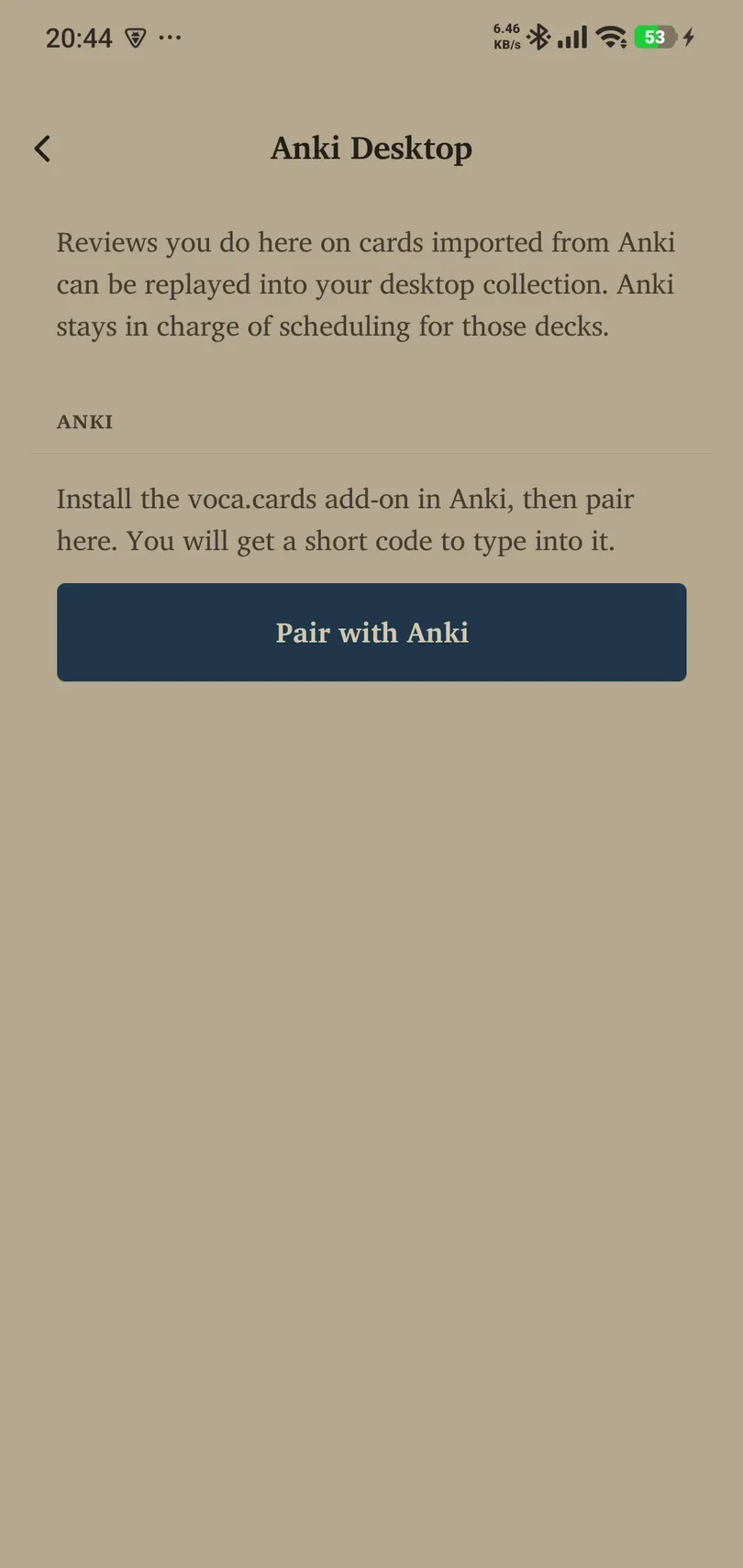
The bridge sends reviews you do in Remilo on imported Anki cards back to a paired desktop collection. Anki stays in charge of scheduling for those shared decks. You need sign-in, the desktop add-on and the matching original cards. Pairing is not Pro-gated.
Set up the connection
- Keep a backup of your Anki collection before connecting workflows.
- Install the supported voca.cards bridge add-on in Anki Desktop and follow its setup instructions.
- Import the intended Anki cards into Remilo if you have not already done so.
- On your phone, open Settings → Cards → Anki Desktop, sign in if asked, and choose Pair with Anki.
- Enter the short code in the add-on under Tools → voca.cards bridge. Codes work once and expire.
- Check that both sides report the intended pairing and collection.
Pairing is stored per account. If a known pairing appears absent after sign-out, sign back in to the same account before creating another.
Send reviews and read the result
Study imported cards in Remilo, then use Send reviews now when connected. Keep Anki Desktop and its add-on available to process the waiting reviews.
Read the result: it can distinguish sent reviews, reviews already queued, cards not in the decks Anki shares, refused reviews, or reviews held back because the phone’s clock was wrong. Nothing new to send means there are no new eligible reviews to queue; it does not promise that every desktop action has finished.
Know the boundary
This is a specific bridge for imported Anki reviews, not unrestricted two-way editing of every Remilo card or automatic AnkiDroid sync. Keep the original card identities and use the add-on’s supported shared-deck workflow. Do not try to force matching by changing filenames or card text.
Manage the pairing
An expired setup code is normal after pairing; an active bridge does not need that code again. Use Unpair only when you intend to disconnect, then follow the offered confirmation. Re-pair the correct collection if needed.
If sending fails, check sign-in, connection, desktop add-on state, shared deck selection and the phone’s date/time. Preserve your backups and read errors before repeatedly re-importing a collection.